
授業支援ツール
InterCLASS® Advance 《インタークラス アドバンス》
Seamless integration with Google Classroom
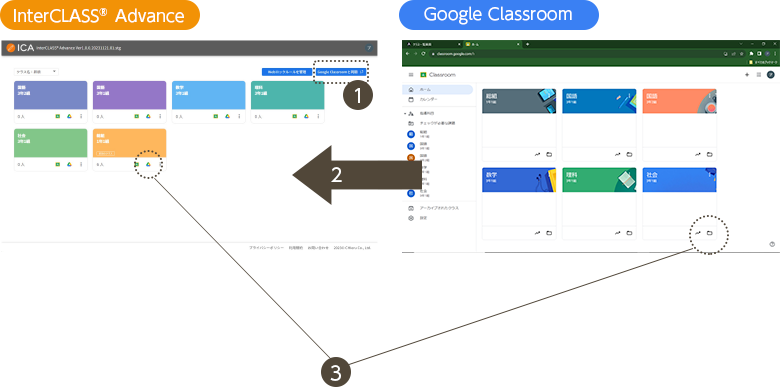
- Simply click the sync button in InterCLASS® Advance to sync with Google Classroom.
- Classes and students are synchronized.
- The class drive is also accessible from the InterCLASS® Advance screen.
Easy operation using only a web browser
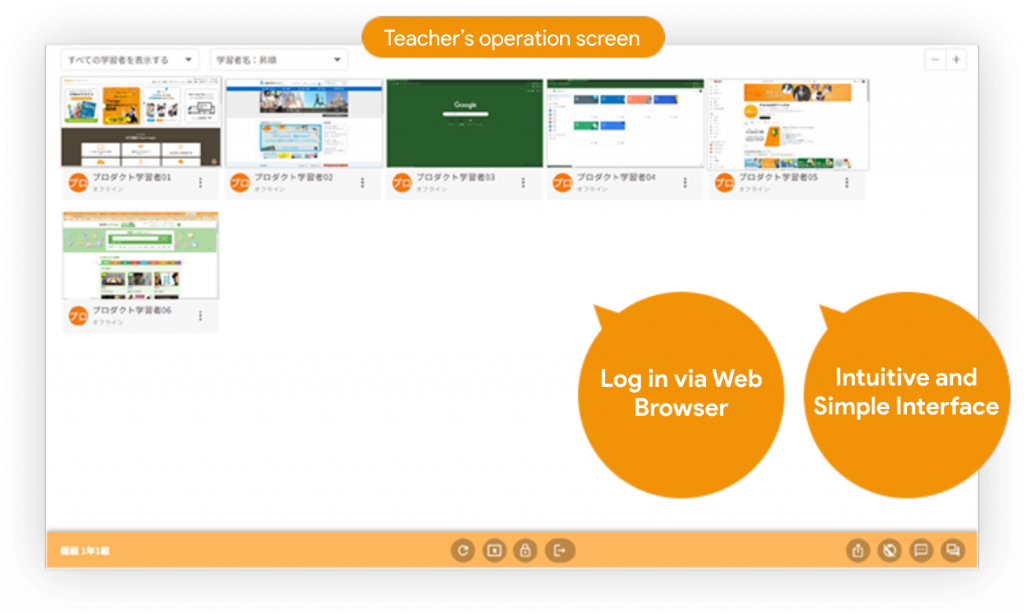
No software installation required!
- Simply deploy the Chrome extension to teacher accounts from the Google Admin console—no software installation needed on individual computers. There is no need to install software on local computers.
Simple and easy-to-use teaching tools to facilitate classes
■Teacher Screen Sharing
Students can select the teacher’s entire screen, an app, or web browser content and share it in real-time on all students’ desktops. Screens stay sharp even on slow Wi-Fi, so teachers can clearly demonstrate detailed tasks, such as using a programming tool, to the whole class.
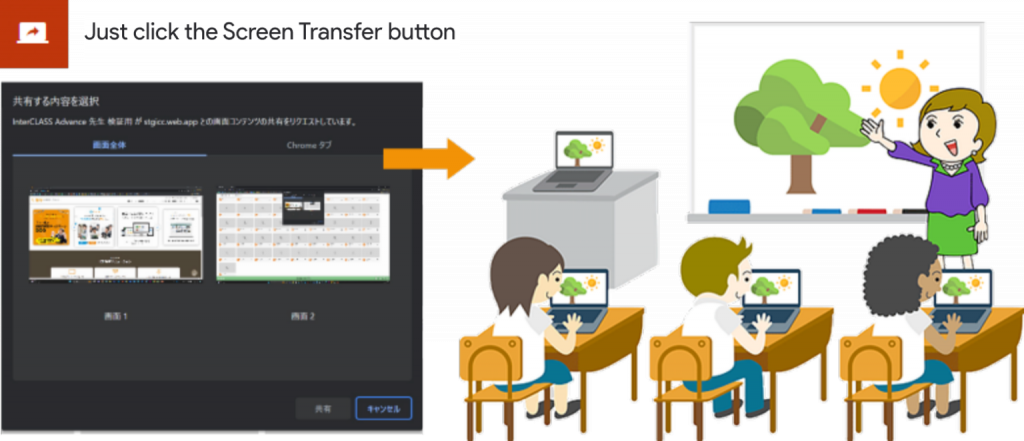
Students can choose the screen to be shared.
- The teacher’s entire desktop screen
- Only the app window
- Only the browser web content (tab)
■Students Screen Monitoring
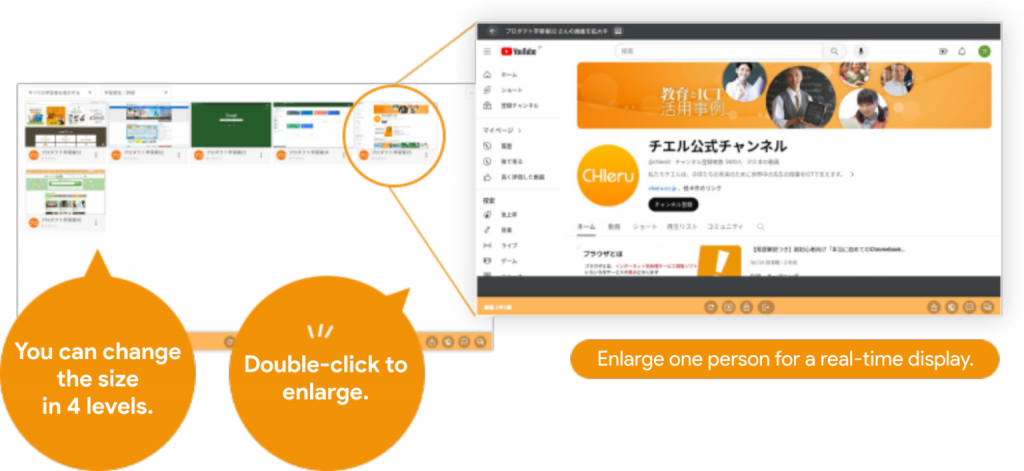
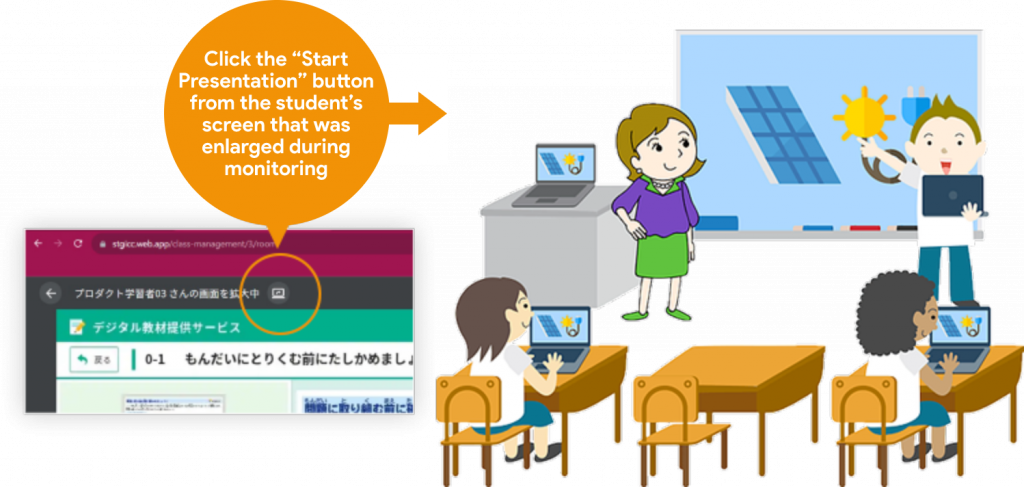
View all students’ Chromebook screens at a glance in a grid. Not only can the teacher check the students’ learning status, but by displaying it on a projector during individual study, students can see each other’s screens. This helps students concentrate on their learning. Teachers can also maximize and display individual students screens to share their work and opinions.
■Students Screen Presentation
The screen of any individual students can be shared with everyone else. Even if there is no projector in the classroom, students’ work and opinions can quickly and easily be shared with the whole class, supporting collaborative learning.
■Screen Lock
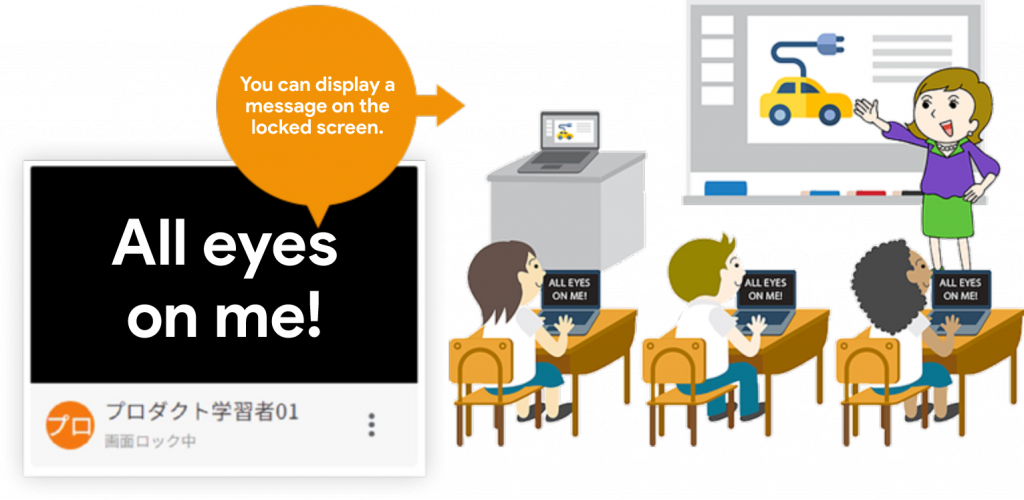
Students’ desktop screens can be locked. Teachers can choose to lock all students or select specific students. This is useful when the teacher is explaining something in the middle of the students’ work or when students need to concentrate on work that does not use a computer.
■Website Browsing Restrictions
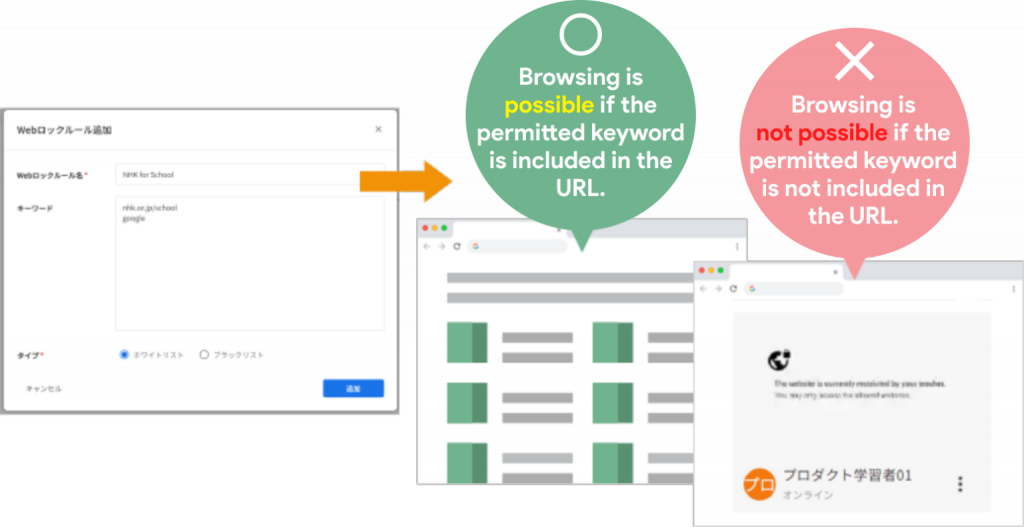
Teachers can allow students to browse only the websites used in class, such as test or teaching material websites or Google Workspace websites. They can easily set this up simply by entering a keyword from the URL of the allowed website.
■Send Website
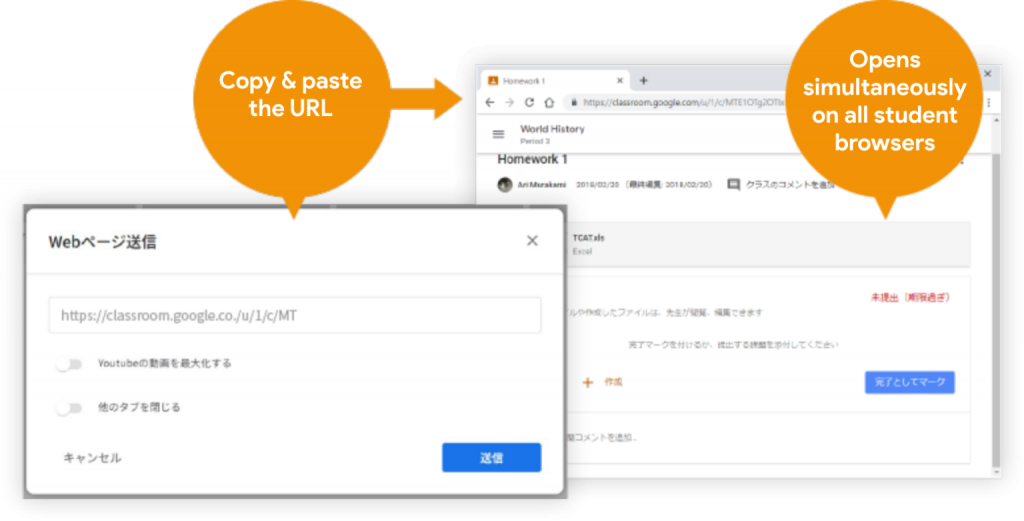
Teachers can open a website with a specified URL on all students’ devices at once. This shortens the time it takes to enter long URLs and allows classes to proceed efficiently.
■Send Message
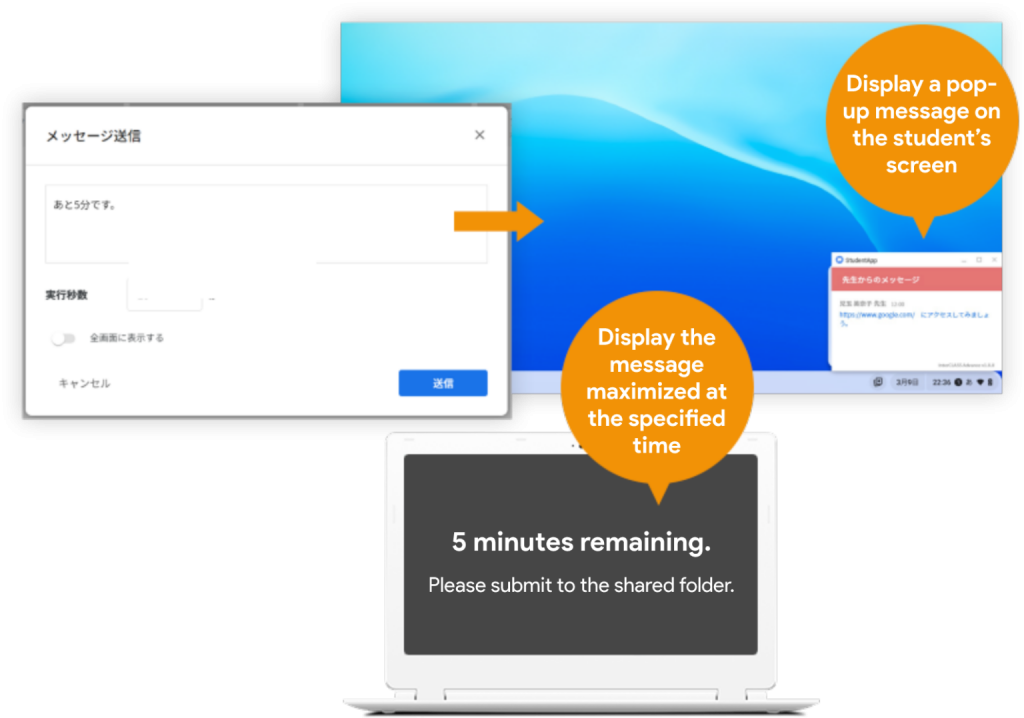
Teachers can send messages to students. They can send simple notices or instructions, either to all students or individually. Messages can also be displayed full screen.
Feature Comparison (Excerpt)
| InterCLASS® Advance | InterCLASS® Advance Light | |
|---|---|---|
| Teacher Device | Chromebook, Windows | Chromebook |
| students Device | Chromebook | Chromebook |
|
students Monitoring Display students screens in a list |
✓ | ✓ |
|
students Screen Comparison Display multiple students screens |
✓ | ✓ |
|
Teacher Screen Sharing Display teacher’s screen on students devices |
✓ | ✓ |
|
Screen Lock Temporarily control students device screens |
✓ | ✓ |
|
Send Web Page Send a specified URL and display it on students devices |
✓ | — |
|
Web Lock Temporarily prevent students from opening websites |
✓ | — |
|
Chat/Message Transmission Use chat and messages during a class |
✓ | — |
|
Browser Marker Write with a marker on the browser |
✓ | ✓ |
Contact
お問い合わせ
製品の実物を見てみたい、費用を知りたい、導入までの流れを知りたいなど、
どんなご要望でもお気軽にお問い合わせください。